Prerequisites
To use the Eedi MCP, you will need a registered Eedi teacher account and an AI tool that supports MCP.
An Eedi teacher account is free for all teachers, and you can sign up at:
https://www.eedischool.com/
For the purposes of this guide, we are using Claude Desktop as an example. However, the concepts apply to many other AI tools that support MCP, and many others are adding support for MCP over time! Check back here frequently as we may add guides for other AI tools.
Connecting to Claude Desktop
The Eedi MCP is added as a custom connector in Claude Desktop. Navigate to Customize and Connectors, then add a new custom connector using the Eedi MCP URL.
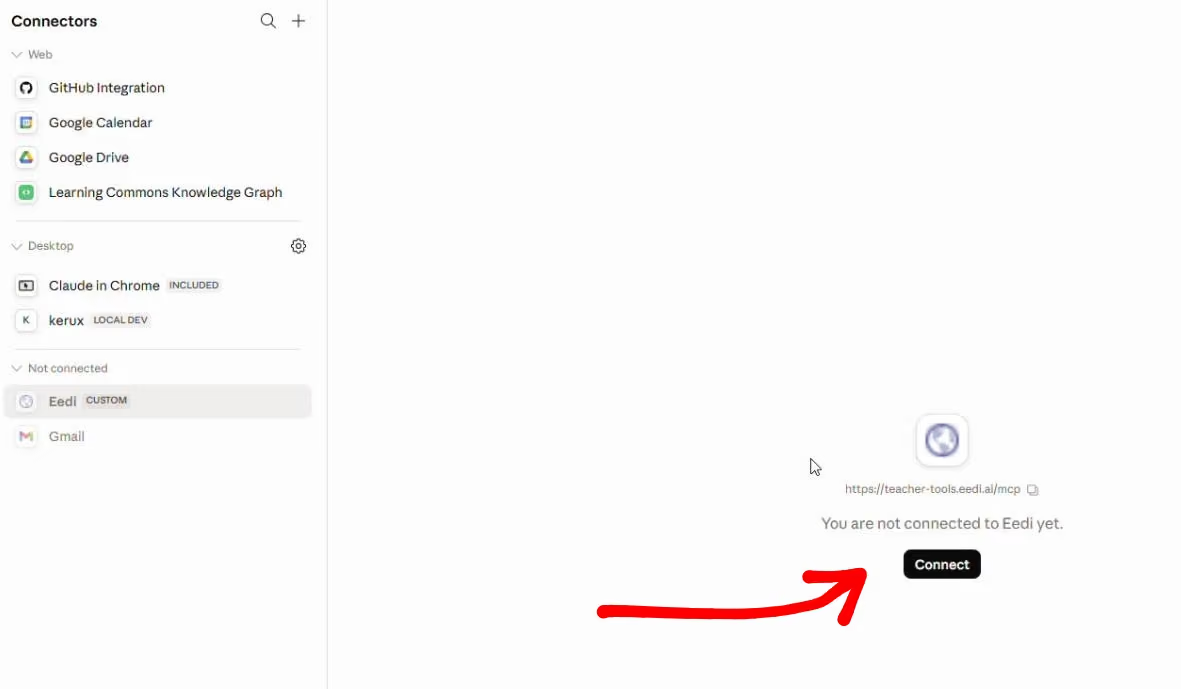
The connector endpoint is:
https://teacher-tools.eedi.ai/mcpOnce added, the connector will appear under Not connected until you complete the authentication flow.
After you click the "Connect" button, you will be directed to login and authenticate your account with Eedi.

After signing in, hit "Allow access" to authorize your MCP server to access Eedi.
Available Tools
The Eedi MCP exposes two read-only tools:

Both tools are read-only. Set them both to Always allow in Claude Desktop so Claude can use them without prompting you each time.
Locale Support
The tools support multiple locales. The default is EN-GB, with EN-US and ES-US also available. Claude will attempt to detect and use the most appropriate locale for your context automatically, and you can ask to return specific languages / localisations as well. We will be adding new locales and languages over time!
Fetching Questions
To retrieve questions, simply describe what you want in natural language. Claude will identify the right tool and parameters from your prompt.
Example prompt:
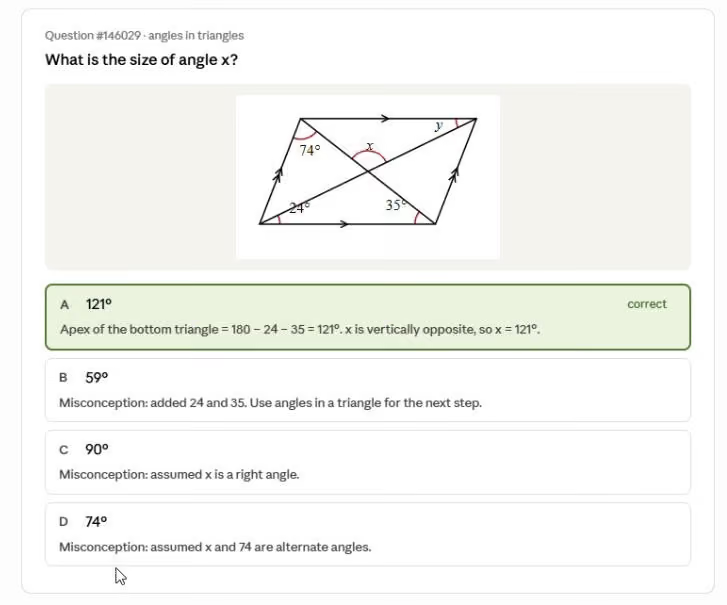
Fetch geometry questions from Eedi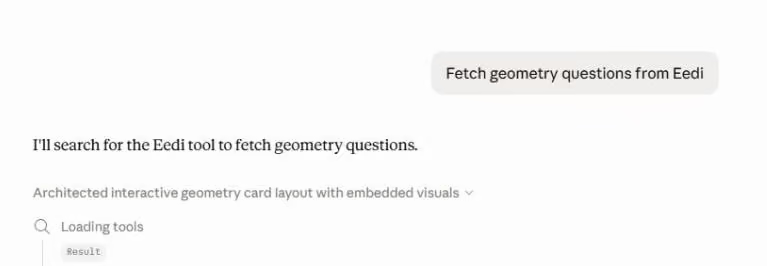
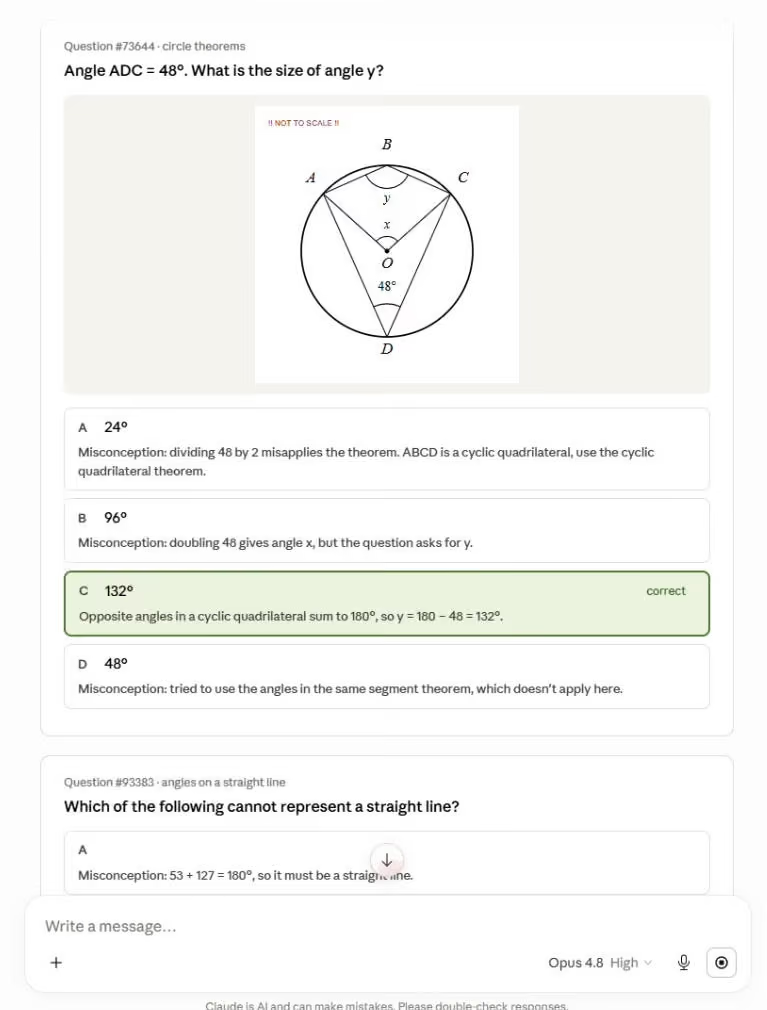
Claude searches for matching questions, retrieves them by question ID, and renders each one as an inline card. Each card includes the question stem, a diagram drawn from the original SVG, the correct answer with its worked explanation, and the distractor options annotated with the specific misconception each one targets.
Standards / Curriculum-Aligned Search
The Eedi MCP can be used alongside other connectors, such as the Learning Commons Knowledge Graph, to find questions mapped to specific standards and learning components.
Example prompt:
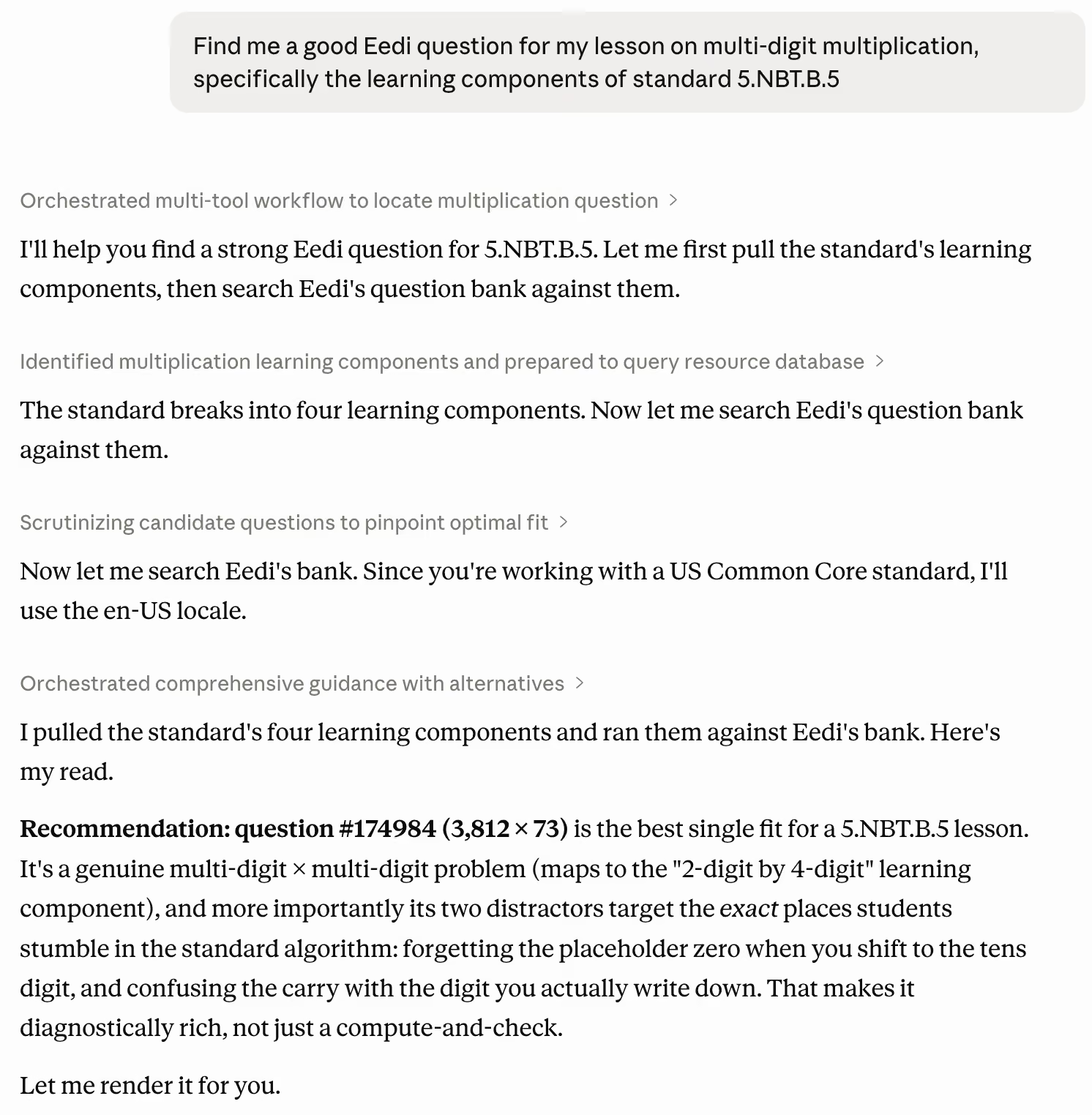
Find me a good Eedi question for my lesson on multi-digit multiplication, specifically the learning components of standard 5.NBT.B.5
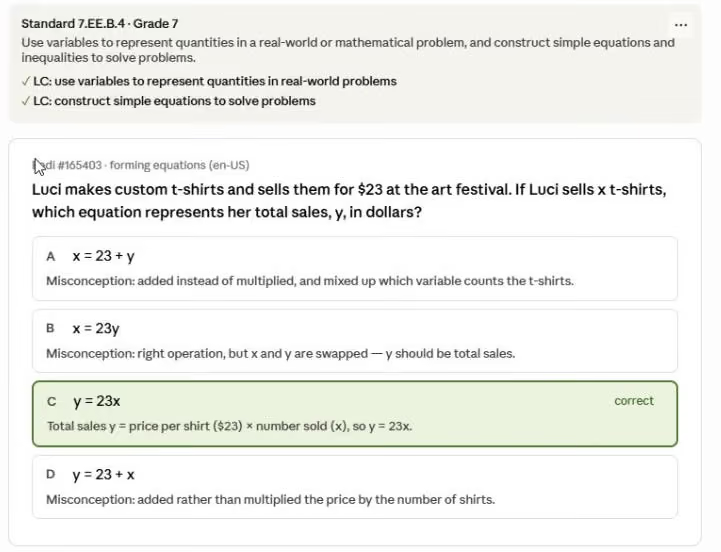
Claude resolves the relevant standard (for example, 5.NBT.B.5), pulls the associated Learning Commons components, then searches Eedi for a question that matches. The result is returned as a card showing the question, its standard mapping, and the LC components it satisfies.
How Question Rendering Works
Questions are rendered as inline cards rather than separate artifacts. Diagrams are served as SVGs pulled directly from the Eedi system, so the visual you see in Claude is identical to the one students see on the platform. Claude is given rendering hints via the tool response to ensure consistent card layout, including the question stem, diagram, answer, and per-distractor misconception labels.